Creating a tool only assigns that tool to the part file you are editing at the time. To use your tools repeatedly for other part files you need to create a tool library.
1.Open the part file that contains tools that you want to save to a library.
2. To the left of the Program tab, select the Tools Machining Objects icon to make sure the Machining Objects Browser is displayed.
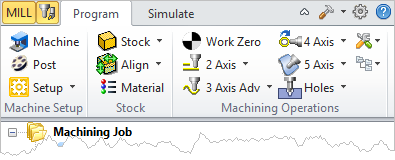 MILL Module Shown, Similar for TURN, MILL-TURN and Profile-NEST Modules |
3.Select the Tools tab from the Machining Objects Browser to see your list of tools.
|
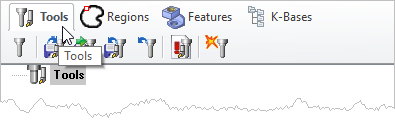
4. From the toolbar below the Tools tab select the Save Tool Library icon.
5.From the Save As dialog that displays, enter a File Name for the tool library.
6.Select a folder where you want the tool library file saved.
7.By default tool library files are extended with a *vkb file extension.
8.Pick Save to save the file.